
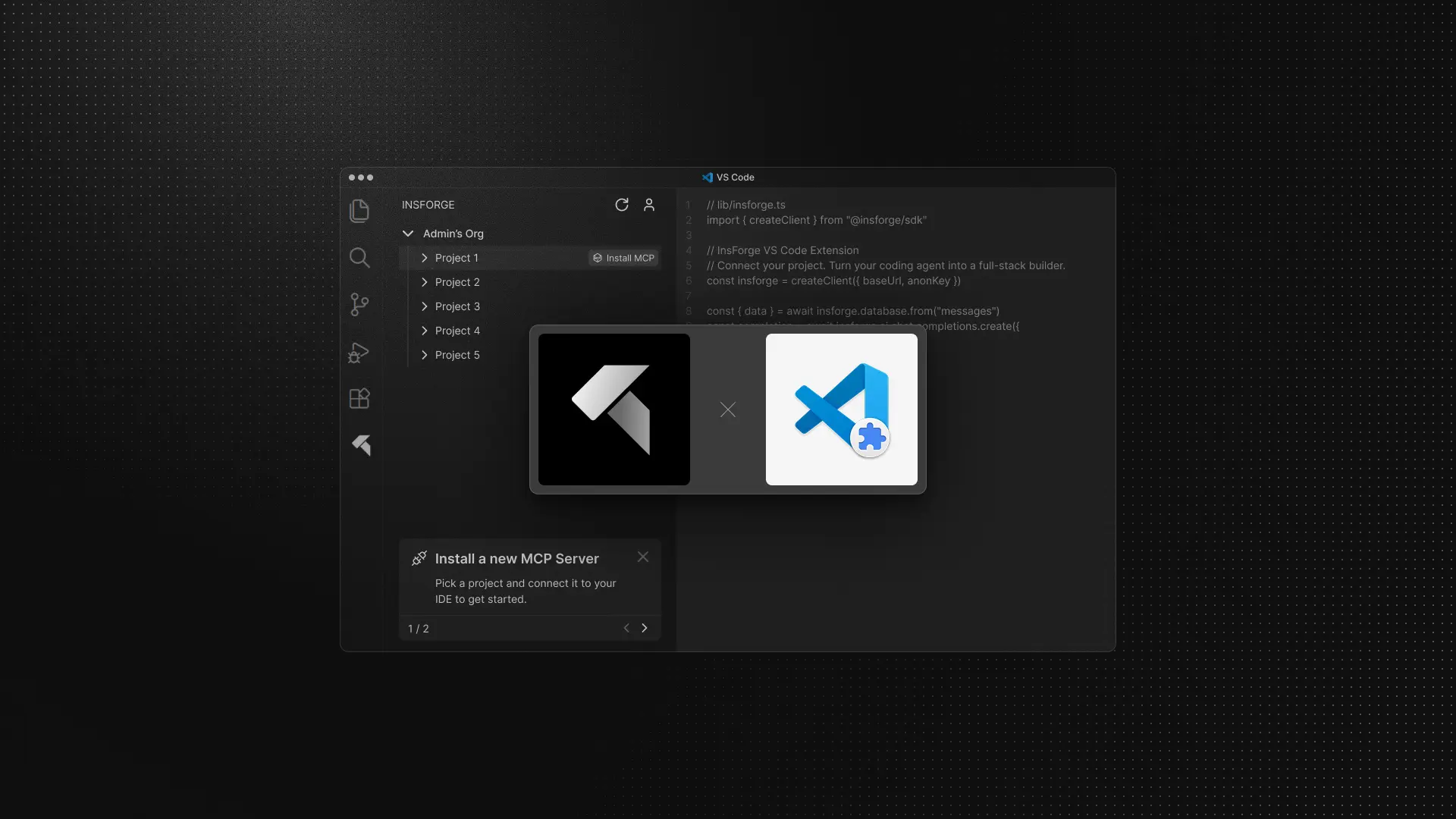
Managing InsForge MCP servers from the terminal is not fun.
Once you have more than one InsForge project, re installation and re configuration quickly turn into busywork. You keep jumping between your browser and your editor just to copy commands, verify setup, and make sure everything is wired correctly.
It breaks flow. And flow is everything when you are building with coding agents.
So we built a better way to manage InsForge MCP servers and projects without leaving VS Code.
What is InsForge VS Code Extension?
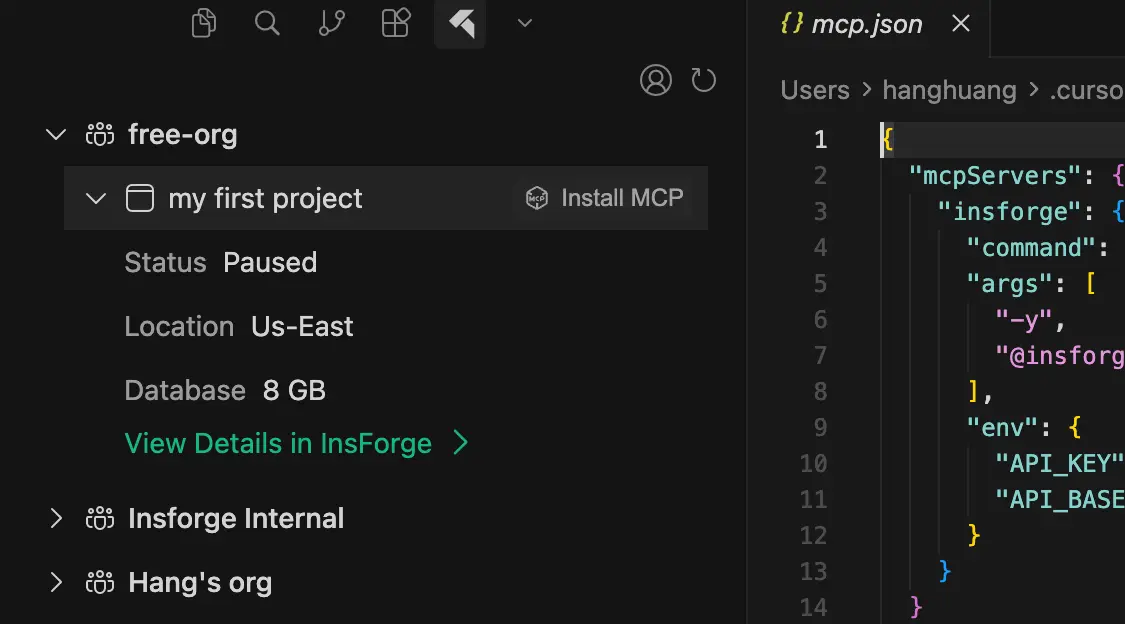
The InsForge VS Code extension is a lightweight, GUI based, editor native way to install and manage InsForge MCP servers.
It provides a visual interface for managing MCP servers and projects directly inside your editor. You can install the MCP server for a specific InsForge project with a single click, without running commands or copying setup instructions.
The extension works natively across the entire VS Code ecosystem, including popular VS Code forks like Cursor, Kiro, Antigravity, Windsurf, Trae, Qoder, and more.
How it works?
From installation to a working MCP connection, the entire flow takes just a few steps.
Step 1. Install the extension
Install the InsForge VS Code extension.
Step 2. Log in and authorize access
Log in to your InsForge account to authorize the extension. This allows the extension to securely access your organizations and projects, so it can display the InsForge projects inside your editor.
Step 3. Install MCP for a project
Hover over the InsForge project you want to connect, then click Install MCP.
Step 4. Select your AI coding agent
Select your AI coding agent from the dropdown and confirm to continue. Depending on your setup, you may be asked to hit Yes or enter Y to continue.
Once installation is complete, you will see a green indicator next to the project. This means the MCP server is installed and ready.
Step 5. Verify the connection
To verify everything is connected correctly, send the following prompt to your coding agent:
I'm using InsForge as my backend platform. Call InsForge MCP's fetch-docs tool to learn about InsForge instructions.
What's next
This extension is just the starting point. We are treating the InsForge VS Code extension as a control plane and editor native dashboard, not just an installation tool.
Over time, more of the InsForge workflow will move directly into your editor. Some of the next areas we are actively working on include:
Deployment
Trigger and monitor deployments from VS Code.
Environment variables
View and manage environment variables for your InsForge projects directly inside the editor.
Get started
Install and manage your InsForge MCP servers today.
Set up takes only a few minutes, and everything runs directly inside your editor. From there, your coding agent can connect to InsForge and start working immediately.